
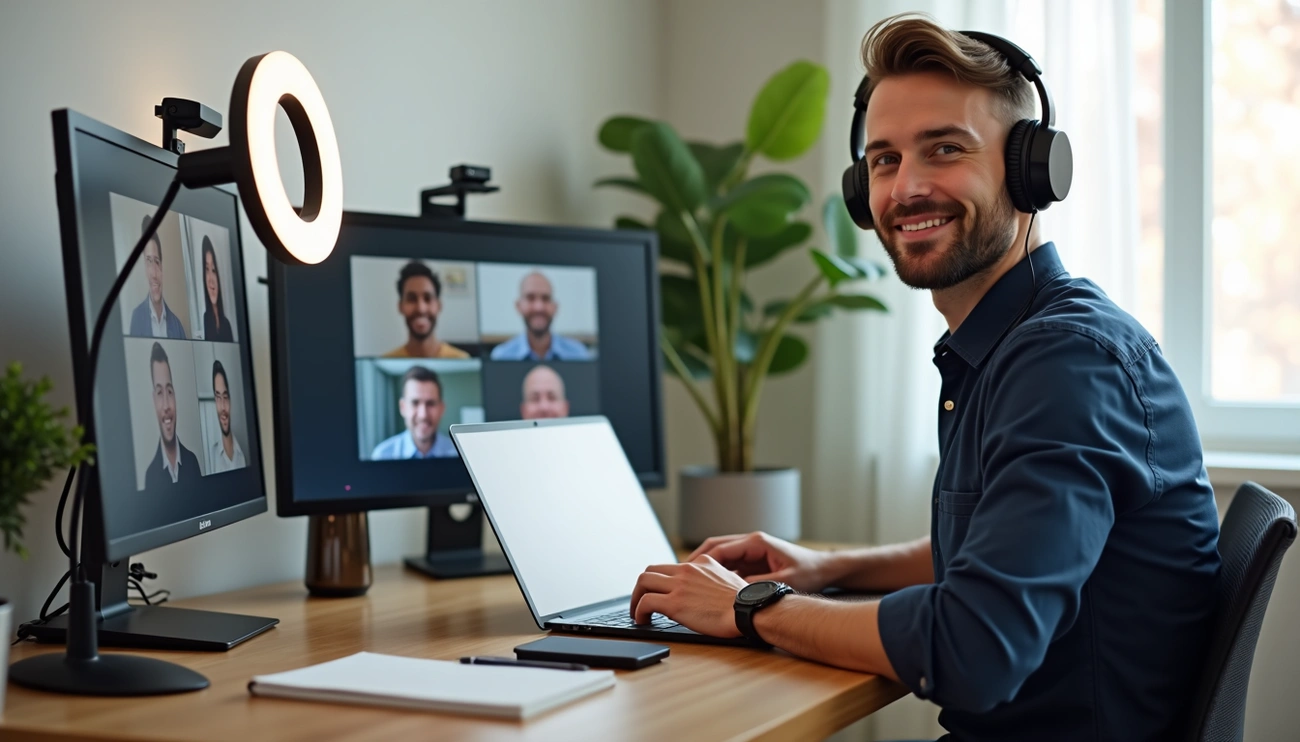

Research shows that 80% of executives prefer video conferencing over audio calls for internal team communication. The numbers are even higher for external communication, with 84% saying video beats audio when connecting with stakeholders.
Teams waste valuable time in the first 10 minutes of most remote meetings. Many professionals haven’t become skilled at setting up video calls properly. Video calls are vital in any discipline, and proper etiquette and setup techniques have become essential for success.
We created this complete guide with video conference tips that work in real-life situations. You’ll learn to optimize your video setup and run effective virtual meetings. These practical solutions will help you turn those awkward, tech-troubled calls into smooth, productive conversations.
Prepare Your Setup Before the Call

Image Source: Neat
Technical preparation is the foundation of any successful virtual meeting. A few minutes of proper setup prevents those awkward “Can you hear me now?” moments that waste everyone’s time.
Check your internet and device connections
Your internet connection’s quality directly shapes your video conferencing experience. Your connection should meet these minimum requirements for smooth video calls:
- Standard quality video: 1.0 Mbps download / 600 Kbps upload
- HD 720p video: 2.6 Mbps download / 1.8 Mbps upload
- Full HD 1080p video: 3.8 Mbps download / 3.0 Mbps upload
A wired Ethernet connection works better than Wi-Fi whenever possible. Wired connections give you better stability and lower latency, which helps prevent frustrating freezes during important discussions. You should run a quick speed test using Fast.com or Speedtest.net before important meetings to check if your connection meets the requirements.
Test your camera and microphone
You should test both your camera and microphone before any important video call. Most video conferencing platforms have built-in test rooms just for this. You can also use your computer’s native applications—Camera app on Windows or Photo Booth on Mac—to check your webcam.
Windows users can test their microphone by typing “Sound” in the search bar, opening Sound settings, and watching if the volume meter moves while speaking. Many browsers also provide webcam test websites where you can verify both your audio and video quickly.
If something’s not working, check that you’ve given the right permissions to your browser or application. A simple computer restart often fixes persistent problems.
Choose a quiet, well-lit space
Your environment substantially affects how you look and sound during video calls. A three-point setup works best for optimal lighting:
- Main light at a 45° angle from your face reduces harsh shadows
- Fill light opposite the main light evens out facial features
- Back light behind you adds depth and separation
LED bulbs at 6000K give you natural daylight, while 2700K creates a warmer tone. Acoustic foam panels on walls help reduce echo and background noise that might distract other participants.
Use headphones to avoid echo
Poor audio quality ranks among the most common video conferencing problems. Headphones offer a simple yet effective solution by stopping your microphone from picking up speaker sounds, which eliminates echo.
Headphones with an external microphone work best for professional video conferencing. A dedicated boom mic gives you better clarity and cuts down background noise compared to built-in laptop microphones. Bluetooth headphone users should connect using the Hands-Free Profile (HFP) or Headset Profile (HSP) instead of the Advanced Audio Distribution Profile (A2DP), which only works for music playback.
Check your audio settings in your video conferencing application before joining calls. Using the same device for both speaker and microphone inputs ensures consistency. This small adjustment can improve your audio quality substantially.
Master the Basics of Video Conference Etiquette
Video conferencing etiquette is the foundation of successful online meetings. A perfect technical setup won’t save you if your meeting behavior is poor. Your professional image and productivity can suffer. Here are the simple rules you need to communicate better in any virtual environment.
Mute yourself when not speaking
Background noise tops the list of distractions during video calls. Research shows microphones can pick up minor noises even when you think you’re quiet. The most basic rule of video call etiquette is to keep your microphone muted when you’re not speaking.
Here’s how to do this right:
- Learn keyboard shortcuts for quick muting/unmuting
- Configure your video software to mute you automatically when joining meetings
- Get a physical microphone with a mute button to toggle easily
You should also cut down noise by picking a room with a closed door. Let others at home know about your call schedule. Use headphones with a microphone to keep your voice clear.
Be on time and ready
Virtual meetings demand the same punctuality as face-to-face ones. Being on time shows respect and helps meetings reach their goals quickly.
Join calls a few minutes early to:
- Fix any technical issues that pop up
- Look over meeting materials and agenda
- Get your shared documents ready
- Check your meeting settings one last time
Running late? Send a quick message to let others know instead of keeping them guessing. This simple courtesy helps maintain good relationships even when schedules get messy.
Dress appropriately for the meeting
Remote work has made dress codes more relaxed, but your clothes still shape how others see you. People make snap judgments within seconds of seeing you on video.
Dress as you would for an in-person meeting based on the context. Your camera-friendly wardrobe should:
- Skip patterns, stripes, and plaids that create weird effects
- Avoid bright white tops that can make your face disappear
- Pick solid, bold colors that look better on camera
- Keep jewelry quiet
- Choose fitted clothes over loose ones that look messy
Note that dressing well helps you stay focused and professional, even if people only see your upper body.
Avoid multitasking during the call
You might want to multitask during video calls, but it doesn’t work. The Cleveland Clinic reports only 2.5% of people can actually multitask effectively. Everyone else loses focus, feels more stressed, and comes across as disrespectful.
Stay focused by:
- Closing extra work windows and apps
- Turning off computer notifications
- Setting your phone to silent or “do not disturb”
- Looking at participants, especially in one-on-one calls
Stanford University research shows multitaskers don’t remember information as well as focused participants. Task switching can waste up to 40% of your productive time. Your full attention makes meetings more productive and helps you communicate better.
These simple etiquette rules create the groundwork for professional, productive video conferences. They help everyone use their time well and communicate more effectively.
Optimize Your On-Camera Presence
Your camera presence creates instant impressions before you say anything. The way you appear visually can substantially affect how well you come across in virtual meetings.
Frame your camera at eye level
Professional video presence starts with proper camera positioning. The best camera height ranges between 42-52 inches from floor level. This creates a natural viewing angle for participants. Your webcam needs to be at eye level—not too low to avoid unflattering upward angles or too high to prevent an awkward downward view.
Laptop users should raise their device with books, a monitor stand, or a dedicated camera mount until the camera reaches the right height. The best frame puts your eyes in the top third of the screen with a small gap above your head. The right camera position creates an illusion of direct eye contact and encourages more natural participation with your audience.
Use proper lighting to avoid shadows
Bad lighting is one of the most common video conferencing mistakes. Here’s what works best:
- Put your main light source straight ahead or at a 45-degree angle from your face
- Add another light on the opposite side to balance your features and remove shadows
- Keep your key light at 600-800 lumens and fill lighting around 300 lumens
Light color temperature substantially affects your on-camera appearance. Light settings around 5000K match early morning light—ideal to look fresh and alert. Settings at 6500K give sharper details but might feel too harsh during long meetings.
Window placement matters too. Natural light works great when it’s in front of you, not behind. Light from behind creates silhouettes that hide your face. People wearing glasses should place lights about 20-30 degrees off-center to stop glare.
Look into the camera when speaking
Looking straight into your camera lens while talking creates one of the most influential video effects. This simple change helps build trust and connection with other participants, unlike looking at screen faces.
Research shows that looking slightly below the camera (approximately 2 degrees) creates ideal eye contact. Moving your presentation window or participant videos close to your camera helps you focus better on the lens.
Sitting 2-3 feet away from your camera lets viewers see your hand gestures. This distance raises your perceived charisma and shows you’re paying attention. The extra space helps reduce constant eye movements too.
Use Tools That Enhance Engagement
Technology powers the success of virtual meetings. Unlike simple video calls from the past, collaborative sessions today need specialized tools that maintain attention and deliver results. Research shows that 85% of participants multitask during virtual meetings, and 44% report they very frequently or always multitask during online gatherings.
Choose the right video conferencing platform
The right platform needs more than just popularity. These key factors will help you make your selection:
- Security features including end-to-end encryption and compliance with standards like HIPAA or GDPR for sensitive discussions
- Integration capabilities with your existing tools (Google Workspace, Microsoft 365)
- Scalability for both small team meetings and larger webinars
- Accessibility features such as live captions for inclusive participation
Popular platforms include Zoom with its reliable screen sharing and breakout rooms, Microsoft Teams that integrates deeply with Office tools, and Google Meet which offers continuous chat functionality across devices.
Use screen sharing and chat features wisely
Visual collaborations replace abstract discussions through screen sharing. You can use this feature better by learning options beyond simple desktop sharing:
Sharing specific applications protects sensitive information better than sharing your entire screen. Set up your preferences early and enable annotation tools that let participants mark, highlight, and make notes on shared content immediately.
Chat functions play different roles during meetings. Private presenter chats help coordinate backstage activities while audience chats encourage questions and peer discussions. Keep in mind that persistent chats may remain visible after meetings end, so check your industry’s compliance requirements.
Assign a meeting facilitator to guide the session
Meeting facilitators act as compasses that keep discussions focused and ensure productive outcomes. They set clear agendas, manage time well, and make sure everyone participates.
Hybrid meetings with both in-room and remote participants need facilitators who create inclusive environments. They perform quick audio-visual checks and ensure remote participants’ voices get heard throughout the session.
Advanced Tips for Better Virtual Meetings
Your virtual meetings can be more than just functional. Let’s take a closer look at some advanced strategies that will make them work better through good preparation and follow-through.
Send a clear agenda before the meeting
A good agenda helps everyone know what to expect and gets them ready. You should share your agenda at least five days before the meeting. Make sure to include:
- Meeting objective and desired outcomes
- Discussion topics with time allocations
- Required pre-meeting preparation materials
- Housekeeping items and introductions
Teams waste valuable time when meetings lack proper agendas.
Record meetings for future reference
Meeting recordings save all audio, video, and screen sharing activities that serve as valuable reference material. Most platforms let one person record at a time and notify all participants automatically when recording starts. You can store these recordings in cloud services so absent team members can catch up easily.
Follow up with notes and action items
Right after each meeting, send out a summary with:
- Specific tasks assigned to individuals
- Clear deadlines for each action item
- Next steps and follow-up meeting dates
Rotate facilitators for recurring meetings
Your team benefits when different members take turns leading meetings. This approach builds confidence in quieter participants. It also breaks down the “not my job” mindset and naturally builds better teamwork.
Use breakout rooms for small group discussions
Breakout rooms work great for meetings with up to 300 people. They create space for meaningful discussions in smaller groups. These rooms are particularly effective for workshops, brainstorming sessions, and team activities.
Conclusion
Video conferencing has become the life-blood of modern work communication. This piece explores practical strategies that turn awkward, technical-difficulty-filled calls into smooth, professional interactions.
Success in virtual meetings starts with proper preparation. A quick test of your internet connection, camera, and microphone will eliminate those frustrating “Can you hear me now?” moments that waste valuable meeting time. On top of that, it helps to create an optimal environment with appropriate lighting and sound management to improve your professional image.
Simple etiquette rules make virtual interactions more productive and respectful. Mute yourself when not speaking, show up on time, dress appropriately, and give your full attention. Research shows that multitasking might seem like the quickest way, but it actually reduces productivity and information retention.
Your on-camera presence plays a crucial role. The right camera position at eye level, strategic lighting without shadows, and making “eye contact” through the camera lens contribute to a more engaging and trustworthy appearance during calls.
The right platform and tools should match your specific needs rather than popularity. This will give a secure environment with integration capabilities and essential features. A dedicated facilitator keeps meetings focused and inclusive, especially in hybrid settings.
Advanced strategies can take virtual collaboration to new heights. Send clear agendas beforehand, record meetings to reference, follow up with action items, rotate facilitators, and use breakout rooms for larger groups.
Becoming skilled at video conferencing isn’t just about technical know-how—it’s about creating meaningful connections across physical distances. These skills rank among the most valuable professional abilities in our increasingly remote world.
These practices will quickly lead to better meeting efficiency, stronger virtual relationships, and fewer technical problems. Note that great video conferencing doesn’t happen by chance—it comes from thoughtful preparation and intentional communication strategies.
FAQs
Q1. How can I improve my video conferencing setup? To improve your setup, ensure a stable internet connection, test your camera and microphone before calls, choose a quiet and well-lit space, and use headphones to avoid echo. Position your camera at eye level and use proper lighting to avoid shadows for a professional appearance.
Q2. What are some essential video conferencing etiquette rules? Key etiquette rules include muting yourself when not speaking, being on time and prepared for meetings, dressing appropriately, and avoiding multitasking during calls. These practices show respect for other participants and help maintain professionalism in virtual settings.
Q3. How can I enhance engagement during virtual meetings? To enhance engagement, choose the right video conferencing platform with necessary features, use screen sharing and chat functions effectively, and assign a meeting facilitator to guide the session. These tools and practices can help keep participants focused and involved.
Q4. What should I do to prepare for a virtual meeting? Prepare by reviewing the meeting agenda, testing your technology in advance, choosing a distraction-free background, and having any necessary materials ready. Mental preparation is also important, so take a moment to focus and set clear objectives for the meeting.
Q5. How can I make virtual meetings more productive? To increase productivity, send a clear agenda before the meeting, record sessions for future reference, follow up with notes and action items, rotate facilitators for recurring meetings, and use breakout rooms for small group discussions when appropriate. These practices help structure meetings and ensure clear outcomes.